
Menu and tab details
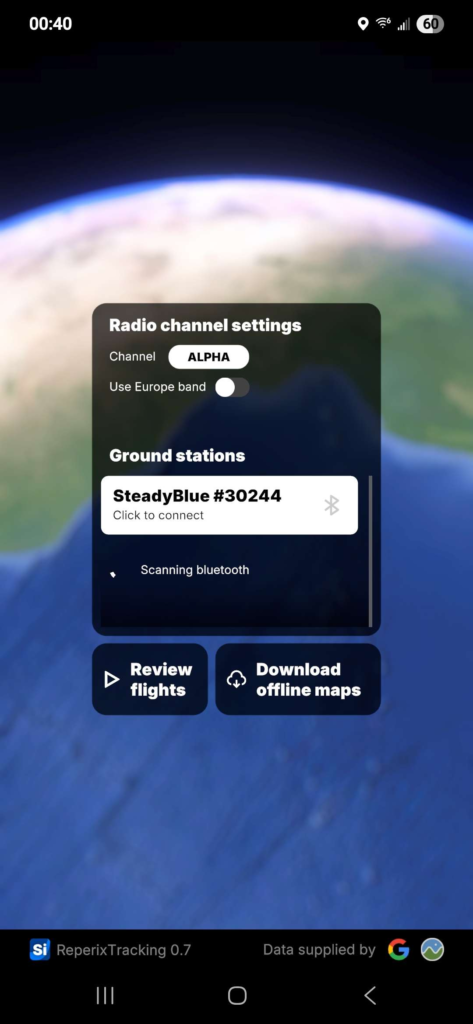
Home menu
The Home tab get you access to the list of the detected nearby ground stations, as well as the selection for your tracker channel settings. To connect to a G.S., tap on it.
Flight review and offline map region download are also available through this start menu.
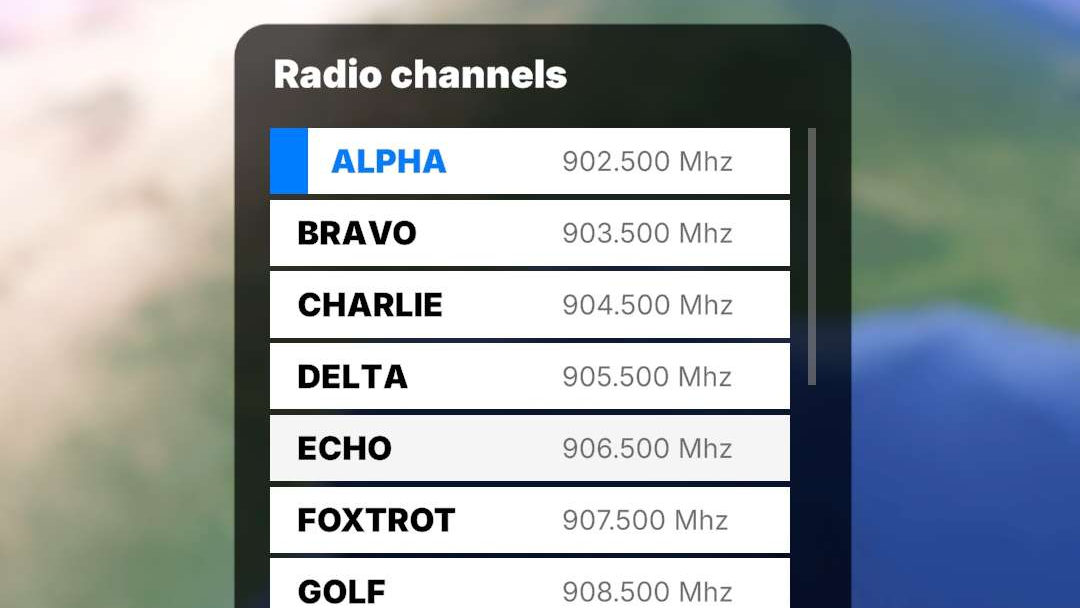
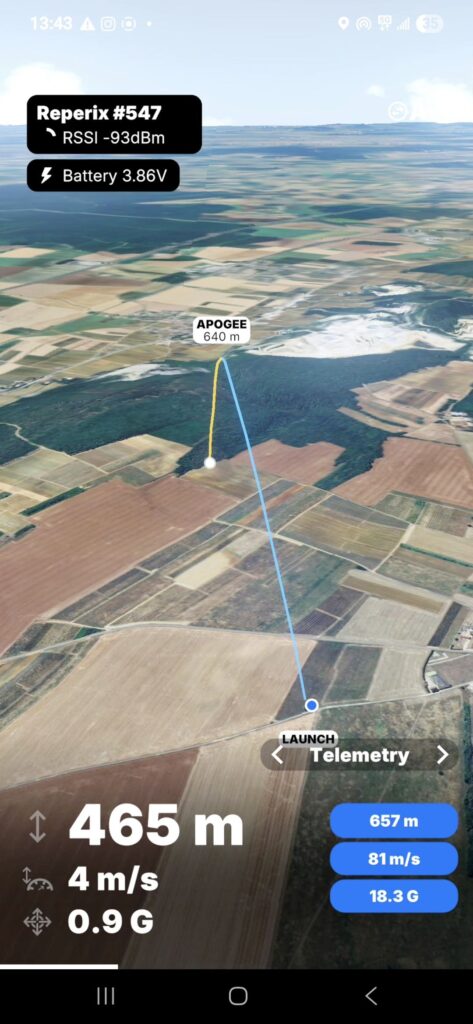
Tracking interface
Once you are connected to the ground station, receiving the signal from your tracker, and with achieved GPS fix, the position of your rocket and yours will be displayed on the 3D map.
Swipe to rotate and pinch to zoom.
The flight path and statistics will be automatically drawn at liftoff; no action is required from the user.
Ground station signal info and tracker voltage are shown at top left, channel settings are accessible at top right, and the bottom section is filled with 4 different tabs. Swipe right or left to navigate through them.
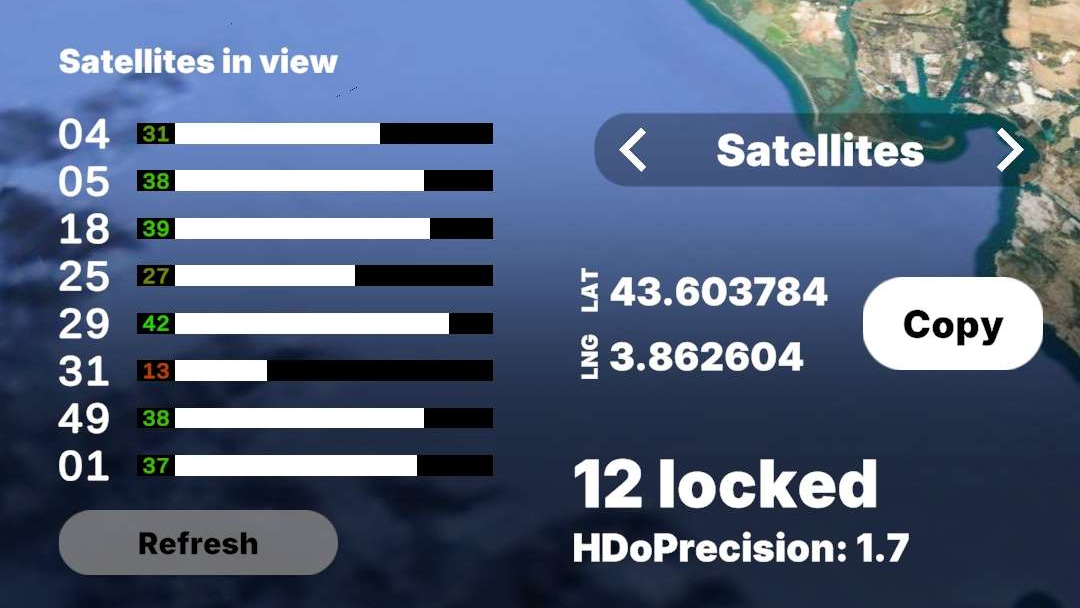
Tab details
The Satellites tab lets you see how many GPS satellites are locked (12 maximum), copy coordinates, and get a view on the quality of the received GPS signals (> 40dbHz optimal).
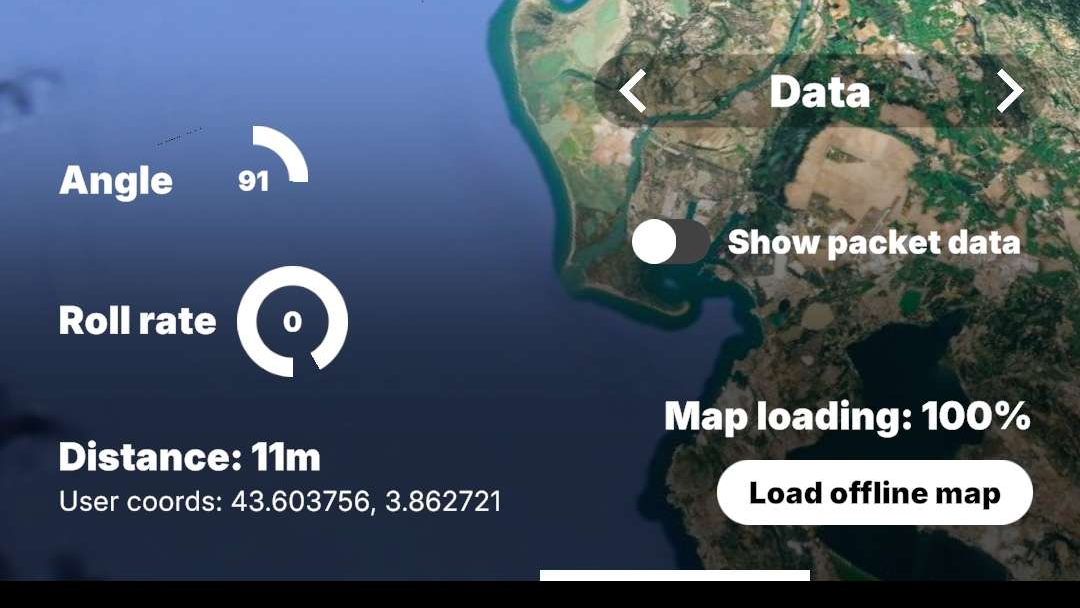
The Data tab lets you see the current angle (relative to horizon) and roll rate of the tracker, distance to it, as well as loading map region data for offline use.
Changing the tracker radio channel
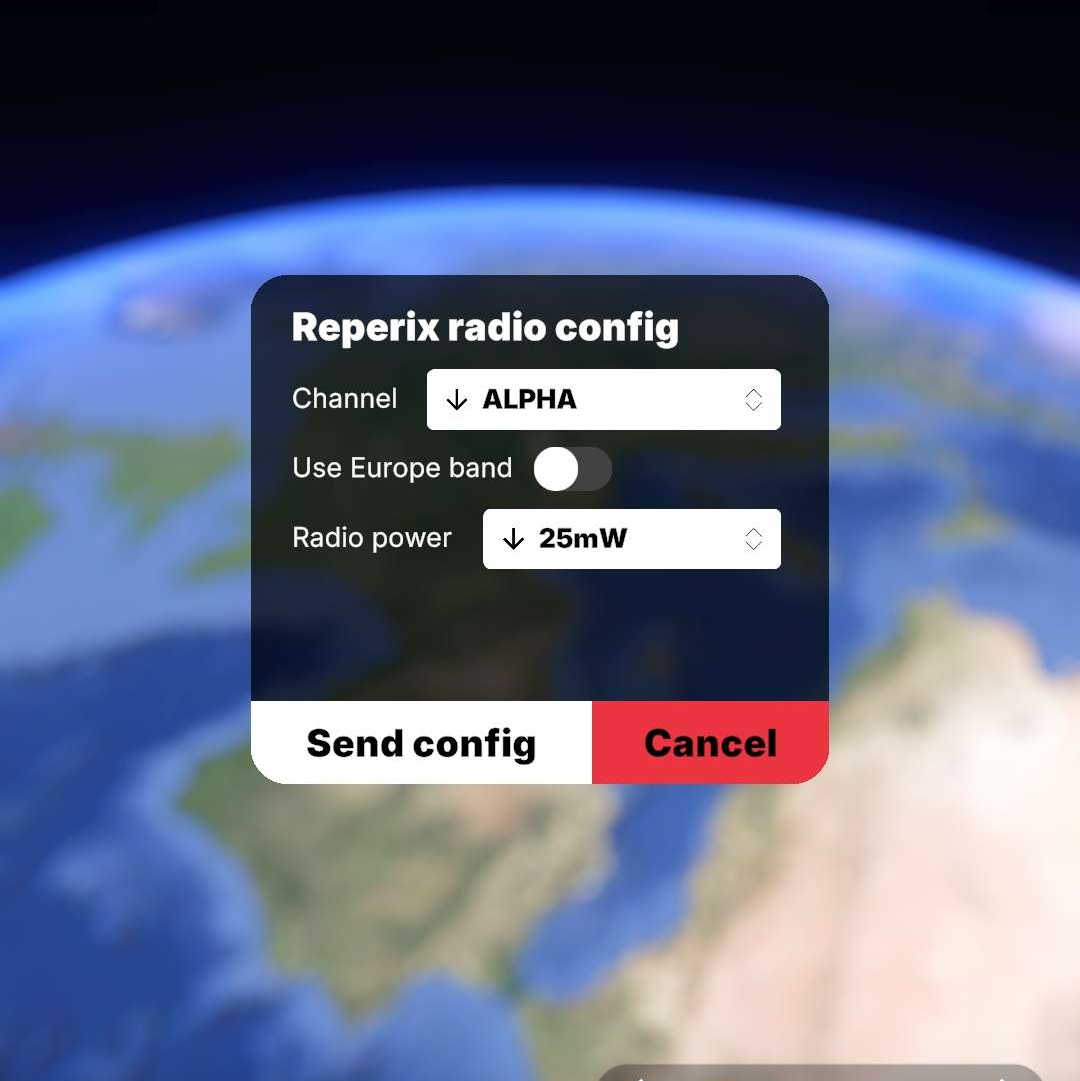
To change the radio channel or settings the tracker is currently using: connect to it, and then tap on the channel icon at the top right of the interface. This will open the config menu.
By sending the config, the tracker will reboot, and the ground station will briefly disconnect from your smartphone to restart on the new selected channel.
Telemetry logging and replay
Flight data is recorded in two ways:
First, the application records all packets received during a flight so that you can review the data and trajectory immediately afterwards under the same conditions.
The tracker also records data in its internal memory at a higher speed and with some additional details (e.g., quaternion orientation). This data must be downloaded after the flight via the tracker’s USB interface and can be exported for analysis in a spreadsheet program. See more in the next section.
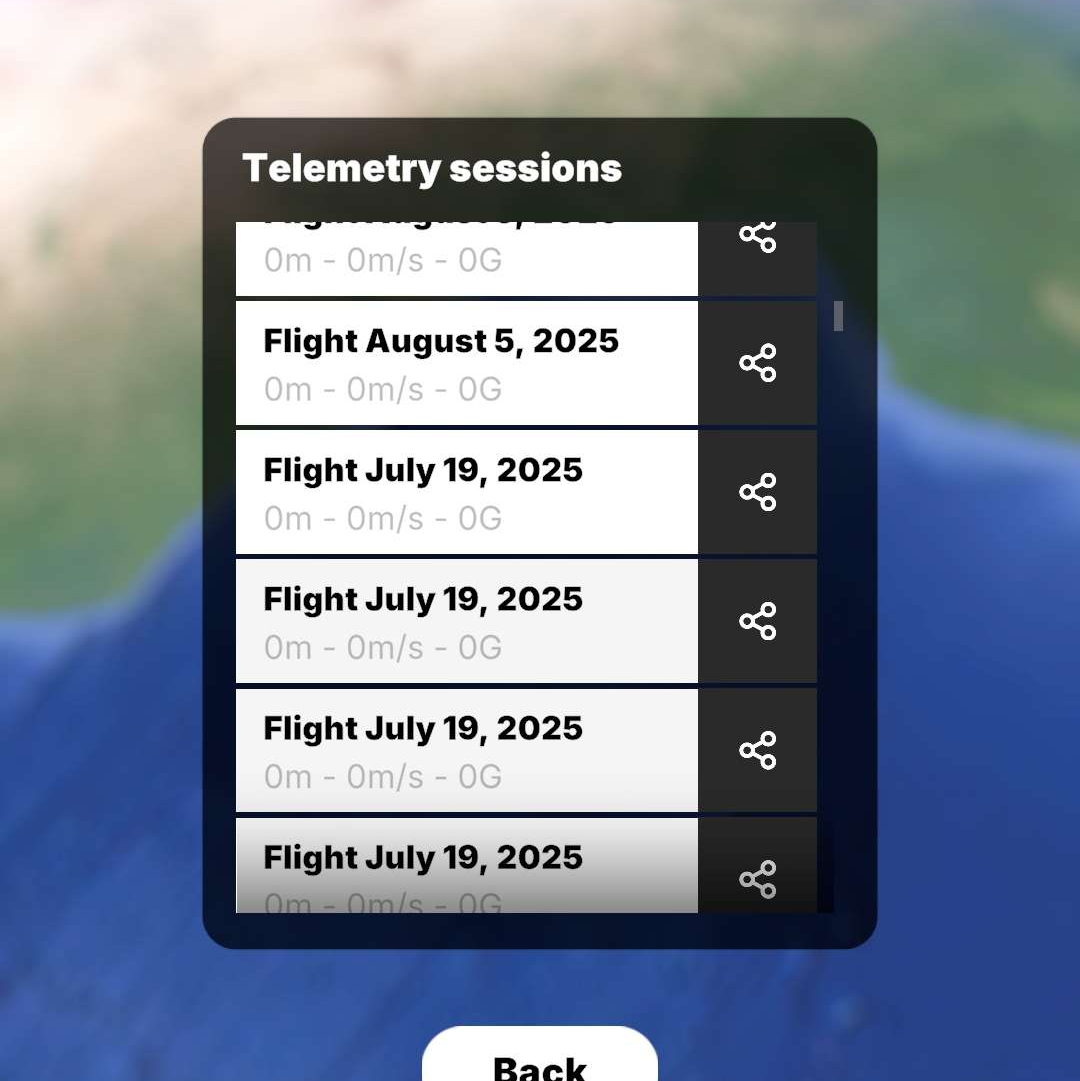
To review a past flight, go to the main menu and tap the Flight Review icon. Then, select the desired telemetry session that corresponds. Tapping the share icon will copy the CSV telemetry data to your clipboard for further analysis or reimport.
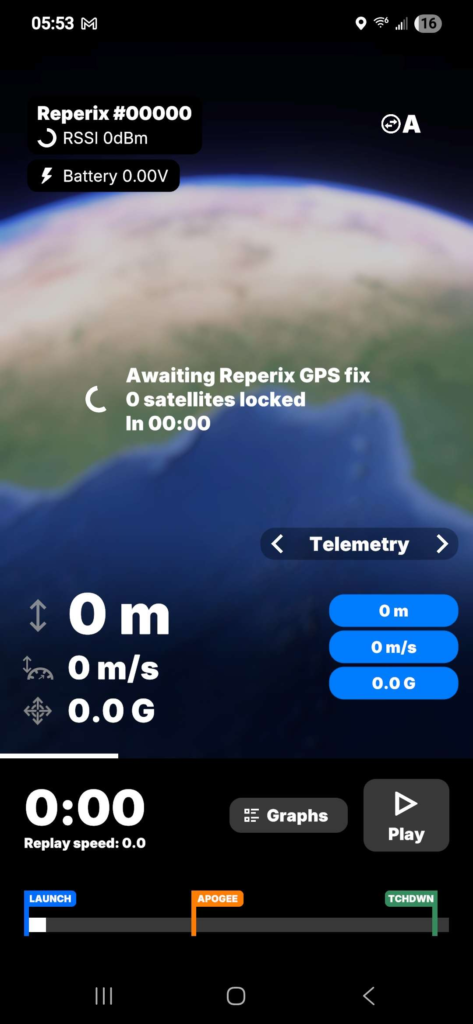
Flight reviewer interface
Coming soon in 1.0…